
Yes, three easy steps are all it takes to export your data from Zoho Invoice to Zoho Sheet. You can export and view all of your invoices, quotes, contacts, customers and items in Zoho Sheet. I am sure most of you would be using this feature already, exploring it for the benefit of others-
Let’s say you want to export and view all your invoices in Zoho Sheet, all you have to do is-
1. Select the “Invoices” tab.
2. Click on the “Export Invoices” link at the top.
3. Click on the “View” link in the Spreadsheet/CSV/TSV format.
That’s it! All your invoices will be exported and will be shown in a new window in Zoho Sheet. Now you can play with it as any other sheet document.
Hope you find this feature useful. We will be happy to hear your comments.
Just like Zoho Sheet, we will also be supporting Google Sheet shortly.
Showing posts with label zoho. Show all posts
Showing posts with label zoho. Show all posts
Tuesday, July 22, 2008
 Zoho Projects Updates
Zoho Projects underwent an update just now and the below features are now available.
Multiple Admins : Till now, Zoho Projects followed the single admin concept. But from now on, there can be multiple admins. The one who created the Zoho Projects account is assigned the super-admin / portal owner role. And he/she can designate other members as Administrators. These administrators have all the previleges as the portal owner except upgrading/downgrading the Zoho Projects account & changing the credit card details.
Task-Documents and Task-Forums Mapping : Along with adding Notes to a task (which is useful for knowing a task’s status etc), documents uploaded to Zoho Projects and discussion forums created for a project can now be associated with tasks. Multiple documents/forums can be associated with a task and a forum/document can be associated with any number of tasks.
Managers can add Clients : Project members in Manager role can now add (external) client members to the projects they manage. This gives a Manager fuller control over the project(s) he/she manages.
Separate iCal link for Google Calendar : Google Calendar follows the VEVENT component as againt the VTODO component that needs to be followed for tasks/tasklists/milestones. To support GCal, Zoho Projects now has a separate GCal link. Clicking on the links, you can download an .ics file which you can import into your iCalendar / Google Calendar.

Thursday, July 17, 2008
MS Office Alternatives - Analyzed
InfoWorld did a good analysis of MS Office alternatives (Slideshow here). They picked couple of vendors from the cloud (Zoho and Google) and couple from the Open Source world (IBM and OpenOffice) and did some analysis to see if they stand any chance against MS Office. Full article is available here. Here is the summary.

Bottom Line:The good news is, the applications are improving at a very rapid pace. If you have noticed, its been a while that we rolled out a new app. The focus lately has been more on integration between apps and enhancements to the existing ones. In the longer term, we think cloud based productivity suites can go far beyond desktop software. We’ll see this happen over the next year or two.
If you’re ready to embrace the SaaS future, then Zoho could be the productivity suite you’ve been waiting for. Zoho can provide both personal productivity and business back-end applications, and with Google Gears, you can keep working on documents even if you can’t find the Internet. Zoho is the only suite here that you could easily use to run a complete business. It’s also the only one that can run virtually all the Excel macros you might have developed
While InfoWorld looked at Word Processor, Spreadsheet and Presentation apps, the productivity suite goes beyond these three (Wiki, Email etc are others). Also, you’ll need more apps to run your business than a productivity suite. In the bigger picture, we are trying to build a suite of apps to run your business. As we often say, we want to be your IT Department.
Wednesday, July 16, 2008
Columns Formating in Zoho DB & Reports
Zoho DB & Reports offers a wide range of data types (column types) to store your tabular data. So far, the options offered for formatting the data stored in these column types have been limited. We have addressed this in our latest update.
Zoho DB & Reports now offers a wide variety of formatting options for each data type. With these options you can choose how you would like to have your data displayed in the various reports created.
How to format a column?
- Select the table or tabular view in which the columns are to be formatted
- Right click on the column that is to be formatted
- Set the necessary formatting option in the dialog that pops up
- Click OK to apply the formatting changes

Formatting options supported include Text Alignment, No. of Decimal places (for all numeric data types), Currency Symbol (for currency type), Negative Number Display (for currency type), Date display format and Include thousand separator (for all numeric data types).
Customize Chart Coloring:
In Zoho DB & Reports the colors used in charts have been system generated so far. With the latest update you can now change the colors used in a chart to suit your taste. Follow the below given simple steps to customize the color in a chart:
- Select the Chart whose colors are to be customized
- Click Edit Design and go to edit mode
- Click on any of the category colors listed in the legend (seen on the right side of the chart) to change the same.
- A color chooser will pop up
- Choose the color required
- Click Apply to apply the color Or Click on Use Default if you would like to revert to system generated colors.

Now Zoho DB & Reports has included the intelligence to auto-identify a data column as currency when you import it into Zoho DB & Reports. You do not have to manually set the data type of those columns as currency, which had been the case so far. The data could be in any of the accepted currency formats (with currency symbol or abbreviation eg., $, USD etc.,) of any country. Auto-recognition would be applied when you import data into Zoho DB & Reports from any of CSV or .XLS or HTML files
Hope you find the above features useful. As always do give it a try and let us know your comments….
Zoho Selected by Swisscom
We are delighted that Swisscom (incumbent telco in Switzerland) has chosen Zoho for a six month pilot for its Zoho Business Suite which is now available on their Software-as-a-Service portal Teamnet.
Zoho and Swisscom have teamed up to create a custom version of Zoho Business, with Zoho Writer, Sheet, Show, Notebook and Meeting now available to its 300,000 business customers. Even though Swisscom is the incumbent telco operator in Switzerland, it is taking a bold approach by extending its offerings to the SaaS space.
Increasingly, Service Providers are looking to add value on their existing networks and have started to include online applications like Zoho to their portfolio of services. In the past, one would not turn to the telephone company for productivity applications, but this is changing with the wider adoption of SaaS in the marketplace. We are glad that Swisscom is taking a lead in this regard and will keep you posted on other developments and partnerships as this trend picks up momentum in coming months.
“The goal of the pilot is to provide our business customers with a value added web offering they can evaluate as part of a turnkey solution from their service provider. Zoho is an ideal partner that combines a wide and very innovative range of applications as well as a very solid engineering team to deliver the capability we wanted.” said Michael Gmuer, Head Business Process Optimization of Swisscom.“.
 Zoho and its Alliance Partner Program offer service providers multiple paths to increase ARPU (average revenue per user), the holy grail that telcos seek to maximize by adding additional services to their existing infrastructure. The program offers partners a flexible means to bundle various Zoho services for both consumers and business users.
While we are starting small with the Swisscom project, it is a significant step towards a broader Zoho distribution channel in Europe. This follows our recent partnership with Baihui in China.
Thank you Swisscom for choosing Zoho and for your investment in the project. We look forward to feedback from your users and to a successful venture together.

Zoho and Swisscom have teamed up to create a custom version of Zoho Business, with Zoho Writer, Sheet, Show, Notebook and Meeting now available to its 300,000 business customers. Even though Swisscom is the incumbent telco operator in Switzerland, it is taking a bold approach by extending its offerings to the SaaS space.
Increasingly, Service Providers are looking to add value on their existing networks and have started to include online applications like Zoho to their portfolio of services. In the past, one would not turn to the telephone company for productivity applications, but this is changing with the wider adoption of SaaS in the marketplace. We are glad that Swisscom is taking a lead in this regard and will keep you posted on other developments and partnerships as this trend picks up momentum in coming months.
“The goal of the pilot is to provide our business customers with a value added web offering they can evaluate as part of a turnkey solution from their service provider. Zoho is an ideal partner that combines a wide and very innovative range of applications as well as a very solid engineering team to deliver the capability we wanted.” said Michael Gmuer, Head Business Process Optimization of Swisscom.“.
While we are starting small with the Swisscom project, it is a significant step towards a broader Zoho distribution channel in Europe. This follows our recent partnership with Baihui in China.
Thank you Swisscom for choosing Zoho and for your investment in the project. We look forward to feedback from your users and to a successful venture together.
Saturday, July 12, 2008
‘Open IT Online’ works with Zoho
Open IT Online is a Firefox extension that allows to open and edit documents and images from everywhere. Thanks to this extension, you will be able to open several types of documents directly in Firefox using online services (such as Zoho) without needing any software to be installed. In other words, it adds an option to your Firefox “Open With” dialog to let you open Word documents, spreadsheets, presentations, and more file types in the Zoho suite, Google Docs, ThinkFree Viewer & others. You can configure defaults for every file type - nice and convenient for fans of online editing. Open IT Online is a free download and it works wherever Firefox 2 or 3 does.
 Here’s more screenshots & a nice video of how to use Open IT Online to view documents online with Zoho. Install the Open IT Online Firefox add-on to view/edit files directly online without downloading them.
Tuesday, July 08, 2008
Zoho Show with another cool Slideshow embed tip
Here’s a little noticed feature in Zoho Show. You make a presentation public and embed it in a blog. Once the presentation is embedded, what if you made (want to make) changes to the original presentation? By default, it will reflect in the embedded presentation too. But this is not desirable in two cases


- When you are adding or editing slides, the visitors to your blog/website will be seeing live the unfinished changes that you are making
- When you want to have the original version linked to on the site while wanting to have the revised version private or shared only to a group
There is the Automatically re-publish when document is modified checkbox which does the trick. Leave it checked and you will always see the latest version in your blog/website. Uncheck it and you can do your edits safely without the external world knowing it.
Having the Automatically re-publish when document is modified option ticked makes the latest version available to the public always
Leaving the option unchecked, you can see that the last published version is 1.4 while the latest version is 1.6
The above is not just limited to embedding your presentation as it applies in general to making a presentation public! Hope you found the tip useful. Try this out in Zoho Show and do leave your comments on how you are using Zoho (Show).
Friday, July 04, 2008
Support for Import and Export in Zoho Invoice
complete flexibility and freedom to move your data in and out of Zoho Invoice at your will. This is how it is done.
"Yes, we are happy to announce the support for import and export functionality in Zoho Invoice, a feature long awaited but well worth the wait.
What can you import or export?
Your complete set of data!
Yes, you can import or export your customer information, contacts, the items you sell (products or services), invoices and quotes.
What are the formats supported?
We have support for most of the standard formats.
Couple of screenshots for a quick look:
Importing contact information into Zoho Invoice:
 Exporting invoices from Zoho Invoice:
 Please feel free to share your comments. "
"Yes, we are happy to announce the support for import and export functionality in Zoho Invoice, a feature long awaited but well worth the wait.
What can you import or export?
Your complete set of data!
Yes, you can import or export your customer information, contacts, the items you sell (products or services), invoices and quotes.
What are the formats supported?
We have support for most of the standard formats.
- Data can be exported in CSV (Comma Separated Values), TSV (Tab Separated Values), XLS (Spreadsheet) and JSON formats. Additionally we also support exporting of customer and contact information in vCards (.vcf files) format.
- You can import your data in CSV (Comma Separated Values) or TSV (Tab Separated Values) formats. Additionally we also support vCard format for importing your contacts or customer information
Couple of screenshots for a quick look:
Importing contact information into Zoho Invoice:
Thursday, July 03, 2008
Zoho starts Tutoring
Looks like Zoho has started posting some useful tutorials and basic steps for their online apps arsenal.
this time they talk about Tasks in Zoho Project.
they say:
"Let’s see the possibilities that Zoho’s project management application offers when working with tasks.
- You define a task which forms part of a larger tasks list. And this task list can be Internal or External, can be associated with a Milestone or not
- You can choose to Send Mail Notification whenever a new task is created, gets assigned
- In the real world, most tasks are accomplished through team work. Zoho Projects allows you to associate a task to multiple team members
- Typical project management involves Start and End dates not just for Milestones reached but for individual tasks also. And you can do this with Zoho Projects
- You can set the priority of each task as High, Medium, Low or None
- A task’s progress can be monitored as you can edit a task and change the % Completed field status. And each task’s status is reflected in the Gantt chart view under Reports"
Wednesday, July 02, 2008
Zoho explains its Export/Backup Options
We get this question quite often -
Does Zoho offer a backup function which will let me download all my data?We have various options depending on each Zoho service.
Zoho Writer : Offers a variety of different formats that you can export a document to - doc, docx, pdf, odf (odt), latex, sxw, html, rtf & txt. Click on Export to see the options.
Also integrates with Google Gears. Offers upto 50 documents to be downloaded to your desktop. You can access these documents from http://writer.zoho.com/offline. Click on Go Offline to download Google Gears and your Zoho Writer documents
Zoho Sheet : Click on Export. Again offers a wide variety of options from xls to pdf to ods to xml. There is also a batch export option available from the sidebar.
Zoho Show : Open a presentation. Click on Export and you will see the options available (ppt, pdf, pps and odp)
Zoho Projects : Export all your tasks as an xls or csv file. Under Tasks and Milestones, click on Export button
Zoho Creator : Export all your data as xls, pdf. Also as RSS, JSON feeds etc.
Zoho Wiki : You can download all the pages of your Wiki as a zip file. Available under Settings -> Click to download the backup
Zoho CRM : Choose the module (Leads, Contacts etc) and click on Export. You can also export all your CRM data in one go also. We charge a nominal fee of $10.
Zoho DB & Reports : Export your reports as csv, pdf or an image file
Zoho Invoice : Export each invoice, estimate as pdf. Export customer’s info as VCard (vcf).
Zoho Notebook : Has an ‘Export as mht’ option. The exported page can be viewed in Internet Explorer.
We will be coming up with more export options in upcoming updates.
Monday, June 30, 2008
Syncplicity Integrates Zoho
Syncplicity, a document synchronization tool integrated Zoho into their application recently. This Sync tool lets you synchronize your documents from your desktop (PC-only currently) to their web application.
If you have Syncplicity installed on your computer, you can right-click on a document on your desktop and choose the ‘Edit in Zoho’ option for editing your document. This opens up a window with the Zoho document editor. When the ‘Save’ button is hit in Zoho editor, it saves the file to your local folder and also your Syncplicity account, thus keeping your document in sync. This works with Zoho Writer & Zoho Sheet Apps now with Zoho Show to follow.
 Similar editing option is also available in their online application to edit documents online. After you save the changes, the documents are saved on their servers.

If you have Syncplicity installed on your computer, you can right-click on a document on your desktop and choose the ‘Edit in Zoho’ option for editing your document. This opens up a window with the Zoho document editor. When the ‘Save’ button is hit in Zoho editor, it saves the file to your local folder and also your Syncplicity account, thus keeping your document in sync. This works with Zoho Writer & Zoho Sheet Apps now with Zoho Show to follow.
And here’s a nice screencast done by the Syncplicity team, demonstrating the integration.
We’d like to thank Syncplicity for integrating Zoho. Our other API Partners are here. If you have integrated Zoho into your application, do let us know so that we can profile you here and list you as a partner in our partners page.
Thursday, June 26, 2008
Zoho Show Updates
As you may know, there were recent updates to Zoho Sheet and Zoho Writer. Continuing on the series of updates, the below new functionalities in Zoho Show are now available.
1. Export to PPT, PPS, PDF, ODP : Zoho Show has long had the ‘Export as HTML’ option. Now we have added the much needed ppt, pps, pdf & odp file export options as well. After opening a presentation, click on the Export button. You will find the new options
2. Languages support : 9 new languages. In addition to English, the Zoho Show UI can now be set to one of these languages too : Chinese, Danish, Dutch, French, German, Italian, Japanese, Portuguese (Brazil), Portuguese (Europe), Spanish & Swedish
3. Personal Groups and Contacts support : Click on Share. You will see the Add Contacts, Add Groups option.
Group the email addresses of your contacts (work, family etc). Useful when repeatedly sharing presentations (need not type all the email addresses again). Also, all your Zoho contacts - the ones who you have shared documents with, from your Zoho Mail account etc - get listed while you share a presentation (auto-suggest feature which will help you in easily picking up who to share a presentation with.
4. Undo/Redo : You can now undo/redo upto 50 actions. You can see the new undo & redo buttons in the toolbar
5. Picasa Integration : Click on the Insert Image icon. You can see Picasa listed along with Flickr (which was already there). You can insert public pictures from your Picasa account
6. Remote Presentation - UI enhancements : Click on Remote -> Make Remote. Try making a remote presentation. You will see a chat tab to the right. The Notes tab is open (for the presenter alone) below the slide area. And the slide area size can be adjusted (to accomodate notes)7. Embed Enhancements (Advanced Options) : Click on Publish -> Embed in Website/Blog. You will see the ‘Advanced Options’ link. Clicking on it opens a new window. There are options like how big you want the embedded preso to be, if you want the toolbar included etc. You can see that the embed HTML code snippet changes according to the options being chosen
8. Copy/Paste slides from one presentation to another : Open two presentations in separate browser tabs. You can copy-paste from one to another.
Friday, June 20, 2008
Print your Reports in Zoho DB & Reports
Printing the reports created in Zoho DB & Reports has been one of the most requested features by our users. And this is now available. You can export any of your reports created (be it chart, pivots, table … ) into a printer friendly PDF file for printing. We offer a good set of options to customize your print outs too. Settings include Page Size, Headers, Footers, etc.
How to Take a Print?
- Select the report to be printed from within Zoho DB & Reports
- Select the “Publish” -> “Export as PDF” menu
- You will see a PDF Export settings dialog as below

- Provide the necessary settings like file name, page size, margins, footer and header
- Click OK to generate the PDF
- Save the PDF file generated into your local folder or Open it from within your browser
- You can print the PDF generated anytime

Hope you find this useful. Take a Print out and let us know how you like it.
Tuesday, June 17, 2008
Customize Zoho Projects
As a versatile project management tool, Zoho Projects offers quite a few options that can be customized. Let’s see some of those here. All these options are accessible by clicking on the Settings link at the top-right (and the tabs there - General Settings, Company Settings)
- Skins : Not everyone likes the UI of an app to be of the same color. And it depends on your mood too. Choose from 5 different colors
- Set the UI’s language of choice (In fact, this is the primary reason for this blog post - we got a query from a user asking us whether Zoho Projects had a Spanish UI option). Zoho Projects supports 14 different languages
- Another cool option is to set your Company’s logo (instead of the default Zoho Projects one)
- Each user can have his/her information like nick name, phone numbers, photo etc to form a profile of their own
- Change your default password (and for changing it from time to time, for added security)
- Your company’s profile, including address, time zone. And the email encoding you would like to use (Languages like Japanese, Korean etc require encoding other than UTF-8 to be set)
- Time and date format settings : Set how you would like time/date to appear across Zoho Projects screens
Utilize the above options to get the maximum out of Zoho Projects.
Zoho Sheet Updates
After our Macros and Pivot Tables update in April, we did couple of updates in Zoho Sheet and here are the highlights.
New Theme - Mint Blue
The first thing you are likely to notice is that Zoho Sheet now sports a light blue theme as in the screenshot below (click on image to enlarge). This blue theme has been made as the default theme. You can select the various themes from the Themes menu at the top.

Public Spreadsheet URLs
We have made the URL of your public spreadsheets much shorter and much more readable. For example: http://sheet.zoho.com/public/sripathyramesh/crm-calculator. Your existing public URLs and embedded spreadsheets will continue to work as well.
We have also provided a page for an user’s public spreadsheets. For example http://sheet.zoho.com/public/dreamisle/ lists the public spreadsheets of dreamisle and you can find some nice spreadsheet puzzles there. There is also an RSS feed provided for an user’s public spreadsheets.
You can now export a public spreadsheet by appending .filetype at the end of the URL. For example: http://sheet.zoho.com/public/username/documentname.xls will export the spreadsheet to XLS format. Supported extensions include xls, sxc, csv, html and pdf.
We also show the number of views of a public spreadsheet. They are available at the top of a public spreadsheet. We have been tracking views since the last 3 months.
Charting Enhancements:
We have done some enhancements to our charting engine.
- You can draw charts on a different sheet in the same workbook.
- Charts on discontiguous data ranges are supported as well.
- The Y-Axis scale of charts will automatically be adjusted depending on the values.
- We have also changed the default chart colors as seen in the above screenshot.
More enhancements in Charting on the way.
Other Enhancements:
- Zoho Sheet is now available in Norwegian language thanks to our users who translated them. Zoho Sheet is now available in 20 languages.
- Auto Sum functionality has been enhanced. It will now automatically select the range at the top or left, when you press the Auto Sum (Sigma) button or use the shortcut Alt+=.
- Some performance improvements have been done in Formula Recalculation and Range selections.
- Some fixes have gone in too.
Read our What’s New page for more detailed information.
Friday, June 13, 2008
Translate PDF & Word Documents with Google Translation
 Say dad bought you a digital camera from Japan but the problem is that the PDF manual that came with the camera is also written in Japanese.
How do you quickly translate that PDF file into an English document ?
Solution: If the PDF document is not password protected, you can easily convert it into another language via Google Translate.
The idea is that you extract the text from the PDF file and pass it to Google Translate. Here’s how:
Step 1: Open Zoho Viewer (review) and upload the file(s). Other than PDF, you may also upload common Office file formats like doc, xls and ppt.
Step 2: Zoho Viewer provides a unique URL for each of your web document. Go to Google Translate, type that web address, select a language pair and hit the Translate button. Voilà!
Important: If the source document is multi-lingual, you should considering uploading to Slideshare since they handle foreign languages slightly better than Zoho Viewer. See a sample document from Zoho and Slideshare.
Slideshare will create a text transcript of your PDF document that can you pass on to Google Translate for converting into another language.
You may even extract text from PDF documents using Adobe Reader itself but again, this program doesn’t work too well with all languages.
Single Web Page Publishing of Your Favorite Websites with Zoho Notebook
 How do you share a bunch of websites with grandma? Normally, you would put all the links in an email message and send it across.
This is fine but imagine if your list of websites is long – that would require her to make way too many clicks and she will also end up opening several browser windows on the desktop.
So here’s a more elegant solution that uses Zoho Notebook – a very powerful note taking app on the lines of Microsoft OneNote. And you can easily login through your existing Yahoo! or Google Account credentials.
First, check this public page to get an idea about what the final solution would look like. And here are various steps involved:
 Create a new book in Zoho Notebook and click "Add Web Page” from the toolbox in the left sidebar. Type the URL of a website (e.g. cnn.com).
Continue this process until you have added all your favorite web pages to that particular book.
These web pages will appear as vertical tabs in the right sidebar. You can double click the tabs to give them a more meaningful name (e.g. CNN). You can also change the order of website tabs by simply dragging them up or down.
When you are done, go to Publish –> Book. Copy the URL of the Zoho Notebook and email it to your gradma – she will love this. Here’s a finished presentation.

Zoho Notebook also offers annotation tools for web pages so can you highlight sections, add freehand drawings to web pages, etc before compiling them into a single web page. There’s more – the final book can be embedded in blogs as well via an iframe.
Tuesday, June 10, 2008
Share - Dont Attach says ZOHO
Here’s a question (with variations of it) we get from the first-timers of Zoho.
I have a document/spreadsheet/presentation that is to be emailed every time to a ‘prospect/client’ or to my ‘boss/peers/co-students/teacher for review’. In the former instance, “I don’t want the doc to stay in my prospect/client’s inbox (as documents soon become obsolete)”. And in the latter instance, “I and my boss/peers/co-students/teacher end up having multiple versions of the file, adding to my/their email clutter”. How can Zoho help me here?
Well, this is one of the fundamental problems solved by Zoho. Let’s say you have a .doc or .odt file. You have a few options in Zoho that would make things easier for you.
- Import your document into Zoho Writer
- Share it by giving the email addresses of your prospect/client, boss,peers, co-students or teacher. They will receive an email with a HTML link (URL) which they can click on to view the document. They can edit the document too, directly inside Zoho Writer if you have given them proper permission
- Make the document public (if it doesn’t contain anything confidential) and give the URL to anyone who would like to view it.
- Upload your document to Zoho Viewer. You get a URL which you email to everyone concerned & they can view it. Use the Zoho Viewer option judiciously - there’s an option where you can choose the URL to expire after a certain time period
Here’s a short screencast (our first attempt. bear with the video/audio quality please!) explaining the above options. For better clarity, view the video in Full Screen mode.
Popout
There are other advantages too.
- No compatibility issues that come with using different types and versions of desktop software
- You can keep updating your document and the latest version’s available for your prospect, client or whoever you want it to be viewed
- Live collaboration is possible - you and your collaborators can work on a document or spreadsheet in real-time
- And, you can chat too (using the embedded Zoho Chat)
Use Zoho. Say NO to email attachments.
Saturday, June 07, 2008
Zoho Redesigned for iPhone
We just rolled out a new design for Zoho on iPhone. You can play with it @ mobile.zoho.com (or iZoho.com). The new design introduces a tabbed interface for navigation between Zoho Apps. Currently, Zoho Writer, Sheet, Show & Creator are supported in this new interface. We plan to add more apps and more functionality to this new version.


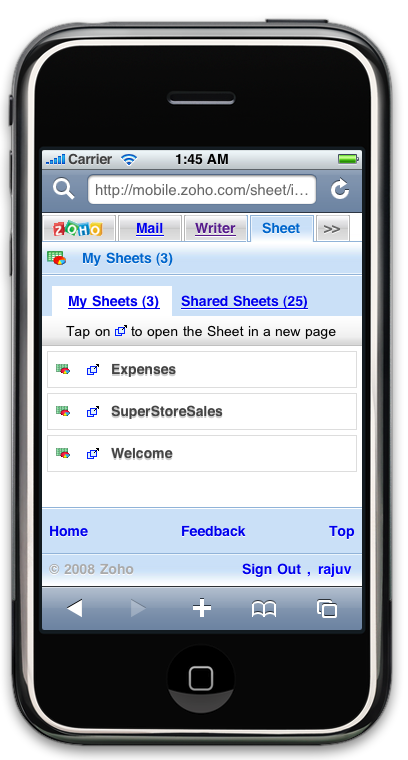
Once you login, the Zoho tab shows the recent 5 documents from each Zoho app. You’ll be able to view your personal and shared documents under the respective application tabs.
We are looking forward to your feedback on this new redesign.
Friday, June 06, 2008
Attach documents with your invoices
We are happy to announce the support for attaching documents while sending your invoices. Now you can attach your purchase order (PO), expense receipts and other supporting documents with your invoices.
How to attach documents?
You can attach documents while sending the invoice to your client. It is like attaching documents to your e-mail.
- Click on the “Send” button in the invoice details page.
- In the “Send Invoice” screen that comes up, click on the “Add” link in the attachment window to add your attachments.
Look at the image below for details:

What Next?
We will be enhancing this feature further. Instead of searching and attaching the documents while sending invoice to your client. We will give you options, to attach documents to the invoice as and when they are ready. Say for example, you will be able to attach an expense receipt to an invoice upon incurring that expense. While sending the invoice, the documents will be automatically attached to the invoice; of course you will have the option to remove the attachments.
Hope you find this feature useful. We would like to hear from you, feel free to share your comments.
Check into this feature by signing into Zoho Invoice now.
Subscribe to:
Posts (Atom)

 Posts
Posts


