Google has added a new feature in its Lookup fromulas.
This time you can lookup for tournaments and pull the data to your spreadsheet.
The parameters include year, league, round, game, attribute and team.
Sports fans enjoy...!

 Google Spreadsheets add Google tournament in Google Lookup
 Zoho Selected by Swisscom

 ‘Open IT Online’ works with Zoho
 Google Spreadsheets - Form feature Updates
Being a rugular user of Google Docs and Spreadsheets, I have recently noticed quite a few improvements in Google Spreadsheet's Form feature.


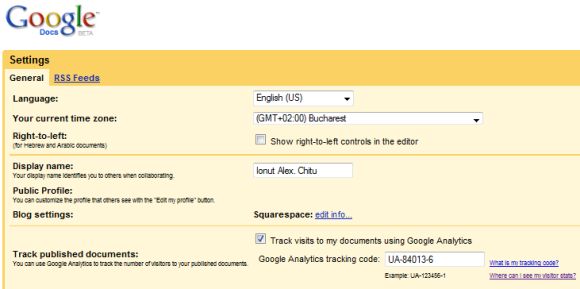
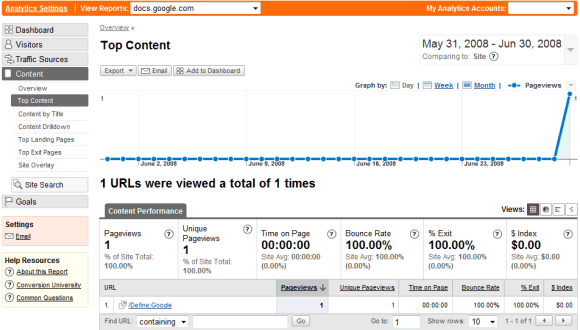
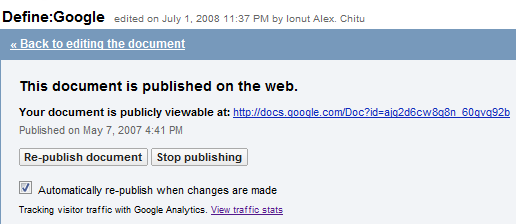
 Get Stats for Google Docs
 Map it in your Spreadsheet - Google Map Gadget
The situation: My good friend Tomashi is visiting New York, and I want to map out a few places for her to visit near my work before we meet for the evening.
What do I do? I use the spreadsheets map gadget, which easily adds a Google map pinpointing all the addresses I've entered.
Here's how:
Create new docs with Bookmarks
With all of the meeting notes, design documents, bug lists, presentations, and other files we share with our teams at Google, we create up to a dozen new documents a day. Of course, this means a daily stream of new docs.
To make this as fast as possible, we use these three shortcuts:
1. Drag the links below (one for each type) into your browser bookmarks toolbar (also known as the navigation toolbar).
New Document
New Spreadsheet
New Presentation
Zoho Sheet Updates
After our Macros and Pivot Tables update in April, we did couple of updates in Zoho Sheet and here are the highlights.
New Theme - Mint Blue
The first thing you are likely to notice is that Zoho Sheet now sports a light blue theme as in the screenshot below (click on image to enlarge). This blue theme has been made as the default theme. You can select the various themes from the Themes menu at the top.
Public Spreadsheet URLs
We have made the URL of your public spreadsheets much shorter and much more readable. For example: http://sheet.zoho.com/public/sripathyramesh/crm-calculator. Your existing public URLs and embedded spreadsheets will continue to work as well.
We have also provided a page for an user’s public spreadsheets. For example http://sheet.zoho.com/public/dreamisle/ lists the public spreadsheets of dreamisle and you can find some nice spreadsheet puzzles there. There is also an RSS feed provided for an user’s public spreadsheets.
You can now export a public spreadsheet by appending .filetype at the end of the URL. For example: http://sheet.zoho.com/public/username/documentname.xls will export the spreadsheet to XLS format. Supported extensions include xls, sxc, csv, html and pdf.
We also show the number of views of a public spreadsheet. They are available at the top of a public spreadsheet. We have been tracking views since the last 3 months.
Charting Enhancements:
We have done some enhancements to our charting engine.
- You can draw charts on a different sheet in the same workbook.
- Charts on discontiguous data ranges are supported as well.
- The Y-Axis scale of charts will automatically be adjusted depending on the values.
- We have also changed the default chart colors as seen in the above screenshot.
More enhancements in Charting on the way.
Other Enhancements:
Read our What’s New page for more detailed information.
Google Trends to a Spreadsheet

Use Google Docs as RSS Reader and Feed Aggregator

This tutorial shows how to use a Google Docs spreadsheet as an RSS Feed reader (see example). You can aggregate news feeds from different sources into one spreadsheet (similar to alltop or popurls or addictomatic) and then publish it as a web page.
If you have a blog, you can use the same trick to embed RSS feeds in web pages. The Google Docs approach is preferred over Flash or Javascript widgets because here you have complete control over the presentation layout and formatting of content.
So before we get started, let’s look at a real example. The following Google Docs snippet shows live feed data from some top technology blogs.
Here are the complete step involved for putting RSS feeds into Google Docs. We use a single feed in the example but you can extend the idea for any number of feeds.
1. Open a new spreadsheets and type the URL of any web feed in cell, say A1.
2. In cell A2, type =ImportFeed(A1, “Items Title”, FALSE, 10) – This will fill column A with the titles of the latest 10 stories in that feed.
3. In cell B2, type =ImportFeed(A1, “Items URL”, FALSE, 10) – This will fill column B with the URL (permalink) of the corresponding stories in column A.
4. In cell C2, type HyperLink(B2, A2) – This will combine the title and URL to make a clickable link that will be available when you publish the sheet as a web page.
5. Copy paste the contents of cell C2 in C3 until C11.
You can experiment with different fonts, colors, sizes, etc. Now go to Publish –> More publishing options, type C2:C13 in the range and get the HTML embed code.
Google Docs will automatically refresh content when the underlying RSS feeds are changed. Here’s a quick walkthrough in video:
Popout
If you enjoyed reading this, you may like to know about tracking Google Docs visitors or how to compare text files with Google Docs.
Google Docs Dashboard

Google Docs has recently added an option to save advanced searches. Besides showing the list of saved searches in the sidebar, Google Docs creates an iGoogle-like page with containers that include results for each of your saved searches. You can reorder the containers using drag and drop and select the maximum number of results.
Depending on the way you use Google Docs, the dashboard is a great opportunity to group related documents, see a list of recently published documents, display the content of a folder or the documents shared with you by a collaborator.
To create a new container, click on "Show search options", build your query and click on "Save this search". A simple example of container shows all the documents from the "School" folder that have been shared with you:
The customized views can be edit or deleted from the sidebar. While the dashboard can't be configured as a start page, bookmarking http://docs.google.com/#home is a fast way to access it.
Document Management Centralized with Zoho Projects
As a project management tool online, Zoho Projects is a nice solution for teams working collaboratively on projects.
A project typically will have a good many files associated with it and what better way than to have them all maintained & managed at a central place. In Zoho Projects, each project has a Documents tab which lists all documents/files uploaded by its project members.
Zoho Projects’ integration with Zoho Writer and Zoho Sheet helps a lot too. You can open .doc, files in Zoho Writer and .xls files in Zoho Sheet directly. This eliminates the conventional way of working with Office documents - download them first to your desktop & then opening them using a desktop based software.
And here’s more. Once you open & edit such files in Zoho Writer or Zoho Sheet, you can save them back directly inside Zoho Projects’ Documents module! Add to this, the versioning support that the Documents module of Zoho Projects offers, you have a good, centralized document management system in your hands.
Try Zoho Projects now for your project and document management needs.
Google Spreadsheets - Latest Features
It seems a bunch of new functionality might be coming to the Google Docs spreadsheets application. By accessing one of Google’s experimental sites (like the one where I found offline access would be coming to Google Docs) I was able to get a sneaky look at some of this functionality, including the ability to record, edit and run macros, edit a shared spreadsheet in something called “List mode” and a few new functions for use in spreadsheet formulas.
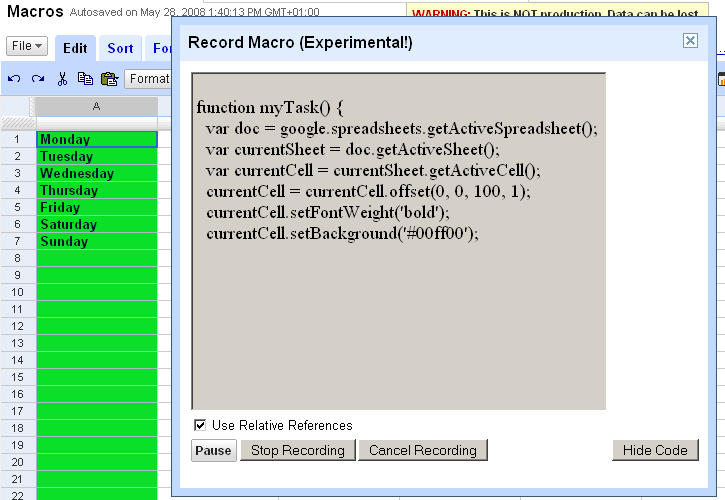
For those unfamiliar with advanced features offered by desktop office applications, a macro is a set of instructions that can be used to automate a series of actions in a program. You can usually record the actions as you carry them out in real-time or edit the macro code directly. Here’s a screenshot showing what macro recording in Google Spreadsheets currently looks like:
Since I’ve opted to display the macro code being created, anyone who knows a bit of JavaScript should be able to work out that I’ve basically highlighted a column, made the contents bold and set the background color to green. For more advanced users, there’s the option to edit the code for all the macros directly, giving each one a different function name:
Once again, it’s quite obvious that this functionality is still in the very early stages of development. During my tests, I was unable to actually get any of my saved macros to run! (Each time I selected “Run Macro...” from the menu, I got a “macroNameNotFound” error popping up.)
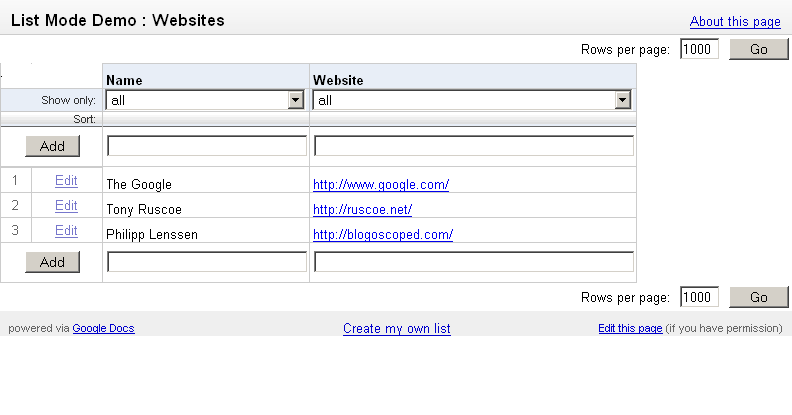
A new option found under the Share tab currently offers Googlers the ability to allow other Googlers to edit a spreadsheet in List mode, which also allows for filtering and sorting. Since many people only use spreadsheets for storing simple lists, I guess this makes a lot of sense.
Although this feature hasn’t officially been made available in the live version of Google Spreadsheets, it seems the experimental functionality is already there. Try editing this spreadsheet in list mode for an advanced preview of the feature. (This feature does seem a bit temperamental at the moment, so if the spreadsheet doesn’t load, try again in a new browser window.)
Other new additions include a set of Engineering functions – some of which are already available in Microsoft Excel – to allow for conversions between different numeral systems (i.e. binary, octal, decimal, hexadecimal) and a new GoogleGeocode function (which was actually spotted about 8 months ago in the live version) that will presumably allow you to do a geo-code lookup on a location, for example:
=GoogleGeocode("Sheffield", "Lat")
=GoogleGeocode("Stuttgart", "Long")
Unfortunately, I keep receiving a “Data temporarily unavailable” error when trying to test this function though.
Edit Google Spreadsheet With Everyone
via Google Blogoscoped
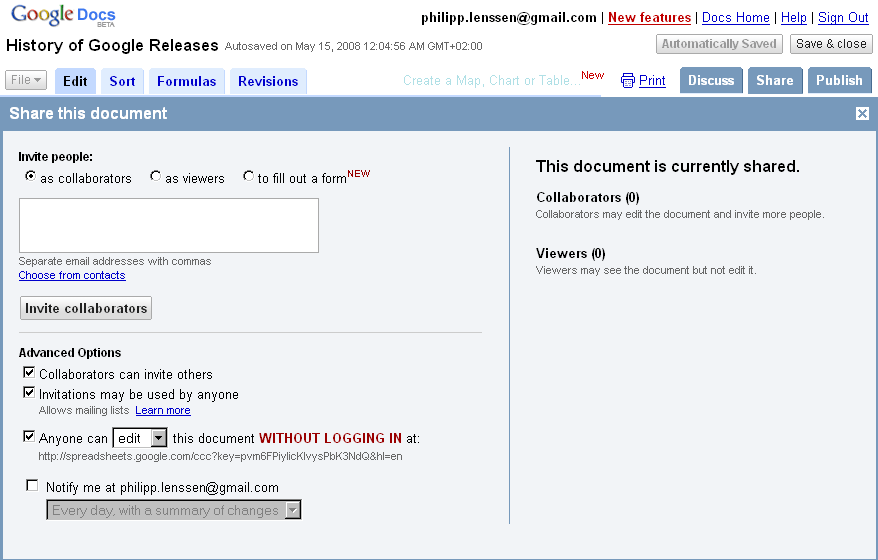
Ionut Alex. Chitu reports you can now edit a spreadsheet with anyone who knows the URL, as an option, and not just people with a Google account which you invite. To set this up, start at Google Docs and click New Spreadsheet. Prepare your data and hit the Share tab; now configure the “Anyone can [edit] this without logging in” box, and share the URL Google provides you with. Ionut says, “your spreadsheet becomes a wiki.”


 Posts
All Comments
Posts
All Comments